
Last Updated on October 11, 2026 by Spencer Lee
The Lenovo ThinkPad X1 Carbon Gen 14 is a strong AI-ready work laptop, not a local AI workstation. Its 50 TOPS NPU meets the Copilot+ threshold, and its memory ceiling doubles to 64GB of LPDDR5x-9600, enough to run small to mid-size local language models on the Arc B390 graphics tier, though slowly. It weighs about 2.15 pounds, nearly the same as Gen 13, and its battery lasts a full workday. Skip it if you want to run large models, generate images, or train anything locally, and choose the OLED display and at least 32GB of RAM if you want any local AI headroom.
Why This Matters
Most business laptops sold in 2026 carry an “AI PC” label, but the label hides a real question: what can the machine actually do with AI that your old laptop could not? For a work ultrabook like the X1 Carbon, the honest answer splits in three. The NPU handles background features such as video-call effects and captions, the integrated GPU and system memory determine which small local models can run, and everything heavier still belongs in the cloud.
By the end of this review you will know what changed from Gen 13, how the Gen 14 compares to a rival, what local AI it can realistically run and at what speed, which configuration is worth buying, and who should pick a different laptop. Every spec below comes from published reviews and Lenovo’s own configuration details.
At a Glance: Gen 14 vs Gen 13 and a Key Rival
| Spec | X1 Carbon Gen 14 | X1 Carbon Gen 13 | HP EliteBook X G1a 14 |
|---|---|---|---|
| Processor | Intel Panther Lake, Core Ultra Series 3 (up to X7 358H) | Intel Lunar Lake, with some Arrow Lake options | AMD Ryzen AI 9 HX PRO 375 or Ryzen AI 7 PRO 360 |
| NPU | Up to 50 TOPS | Up to 48 TOPS | 55 or 50 TOPS (XDNA 2) |
| Integrated graphics | Arc B390 (12 Xe cores) on the X7 tier, smaller on lower chips | Arc 140V on Lunar Lake | Radeon 880M or 890M |
| Max memory | 64GB LPDDR5x-9600, soldered | 32GB LPDDR5x-8533 on Lunar Lake models, soldered | 64GB LPDDR5X-8533, soldered |
| Display options | 14″ WUXGA IPS 60Hz or 2.8K OLED 120Hz with VRR | 14″ OLED or WUXGA IPS | 14″ 1200p IPS 60Hz or 2.8K OLED 120Hz touch |
| Weight | About 2.15 lb (roughly 1kg) | About 2.16 lb (0.98kg) | From 3.3 lb (1.49kg) |
| Local AI fit | Small to mid-size models, best on the X7 tier | Small models, 32GB ceiling | Small to mid-size models, heavier chassis |
What’s New in the ThinkPad X1 Carbon Gen 14?
The Gen 14 is a platform and chassis redesign, with the biggest changes in memory, cooling, and serviceability, not weight. It weighs about the same as Gen 13, which was already close to 2.15 pounds.
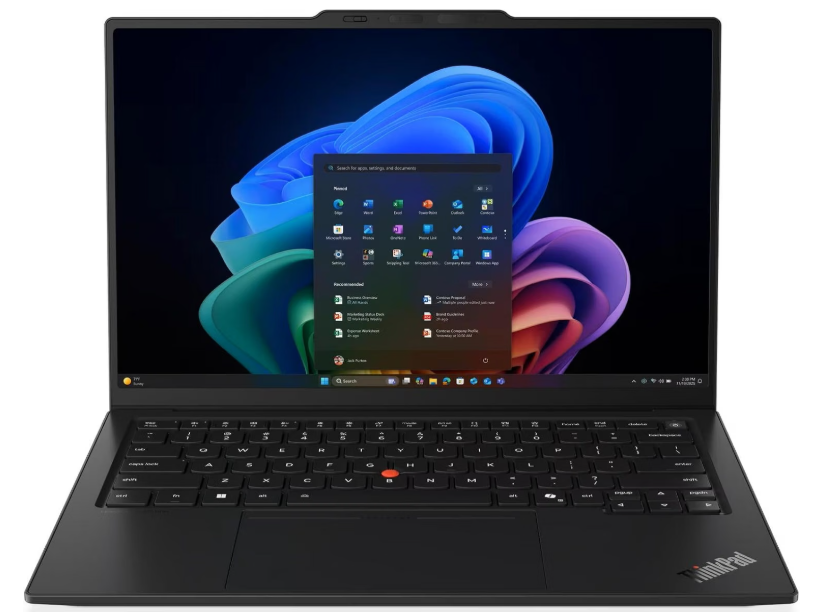
Lenovo moved to a structural frame it calls the Space Frame, and hands-on coverage reports that the battery and SSD can be swapped by the owner, with an iFixit repairability score of 9 out of 10. The system board is double-sided and 20 percent smaller, leaving room for a fan that is 70 percent larger, and Lenovo says the chassis can sustain 30 watts on the Core Ultra X7 platform. Memory is soldered, but it now scales up to 64GB at 9600MT/s, compared with a 32GB ceiling on Gen 13’s Lunar Lake models at 8533MT/s. Storage can reach 2TB on PCIe Gen 5 drives, and the NPU rises to 50 TOPS.
What changed from Gen 13:
- Memory ceiling doubled to 64GB, with about 11 percent faster memory speed (9600 vs 8533 MT/s)
- Larger fan and smaller board support 30W sustained power on the X7 platform
- Battery and SSD are owner-serviceable, while RAM stays soldered
- NPU rises to 50 TOPS, up from 48 TOPS on the best Gen 13 chips
- Weight is essentially unchanged at about 2.15 pounds
How Is the Display, and Which Panel Should You Choose?
The 2.8K OLED panel is the one worth buying, with 2880×1800 resolution, 120Hz variable refresh, up to 500 nits, and full DCI-P3 color. The base 1920×1200 IPS option is limited to 60Hz and is the compromise configuration.
For video calls, document work, and reading transcripts of AI meeting summaries all day, the OLED panel is a meaningful upgrade in contrast and sharpness, not a cosmetic one. Both panels use an anti-glare finish. The IPS option keeps costs down and handles basic office work, but it is not the version most reviewers recommend.
Display takeaways:
- OLED: 2880×1800, 120Hz VRR, up to 500 nits, the clear pick if budget allows
- IPS: 1920×1200 at 60Hz, fine for basic office use only
- Both panels are anti-glare, avoiding the reflections some rivals still ship
How Does the Panther Lake CPU Perform in This Chassis?
Intel’s Panther Lake chips handle everyday productivity well, but the thin chassis throttles under sustained heavy loads, which matters for AI because inference and transcription are sustained loads. The chassis is tuned for responsiveness and efficiency, not for long full-power runs.
The tested Core Ultra 7 355, an 8-core chip that reaches 4.7GHz, handled heavy multitasking with dozens of browser tabs, chat apps, and background music without noticeable lag. Independent testing found it delivers roughly 80 percent of a full-power Core Ultra 9 386H and about 90 percent of the higher-wattage Core Ultra X7 358H at similar power settings. Sustained CPU workloads show measurable drops compared with thicker laptops. If you plan to run local AI for long stretches, our explainer on why AI makes a laptop so hot covers what to expect from thermal limits.
CPU takeaways:
- Everyday multitasking is smooth, with no lag in typical office use
- Performance lands near 80 to 90 percent of higher-wattage chips at similar power
- Sustained loads, including long local inference sessions, show measurable throttling
- The 50 TOPS NPU meets the Copilot+ PC threshold of 40 TOPS
Can the ThinkPad X1 Carbon Gen 14 Run Local AI Models?
Yes, but only small to mid-size models at modest speed. It runs 7B to 8B language models comfortably when configured with 32GB or more, and a 64GB configuration can hold 32B-class quantized models, but generation will be slow compared with a laptop that has a discrete GPU.
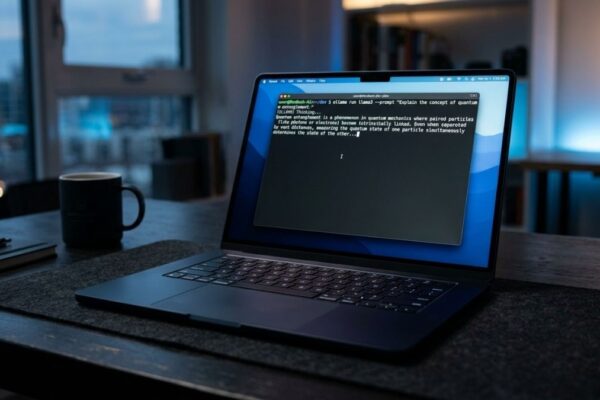
Local text generation speed is limited mainly by memory bandwidth. A useful rule is that decode speed is roughly memory bandwidth divided by the bytes of active weights read per token. The Arc B390 tier shares system memory at about 154GB/s. A 4-bit 8B model is roughly 5GB, which puts the theoretical ceiling near 30 tokens per second, while a 4-bit 32B model is roughly 19 to 20GB, putting its ceiling near 7 to 8 tokens per second. Real results land well below those ceilings. Because the GPU shares RAM with everything else, the model, the operating system, and your apps must all fit in the same pool, which is why 32GB is the practical floor and 64GB is the choice for larger models. For context on model sizes, see what laptop specs you need to run ChatGPT locally and our local LLM guide with Ollama.
The software side is less mature than NVIDIA or Apple. Ollama cannot target the NPU at all, and on an Intel integrated GPU it needs the OLLAMA_IGPU_ENABLE=1 setting or it silently runs on the CPU. LM Studio’s Vulkan runtime detects the Arc B390. Intel’s OpenVINO is its best-supported path: in one community test on Lunar Lake’s Arc 140V, OpenVINO decoded about 1.3 to 1.5 times faster than Ollama’s Vulkan route, at 20.3 versus 13.7 tokens per second.
Local AI reality on this laptop:
- 7B to 8B models: comfortable with 32GB or more of RAM, near 30 tokens per second at best
- 32B-class quantized models: possible with 64GB, but slow, near 7 to 8 tokens per second at best
- NPU: handles background features, not the chat models run through Ollama or LM Studio
- Software: expect setup steps, since Intel’s tools are less polished than CUDA or Apple’s MLX
- Image generation and training: not a good fit, see our RTX 5070 vs RTX 5080 guide for laptops built for it
What Are the Best Uses for AI on This Laptop?
The best uses are NPU-powered Windows features, small private local assistants for drafting and document questions, and a fast cloud connection for heavy reasoning. It is a laptop that uses AI well at work, not one that replaces a GPU workstation.
The 50 TOPS NPU runs background blur, live captions, and real-time translation efficiently, which saves battery during calls. A 7B or 8B local model handles private drafting, summarizing, and questions about your own documents without sending data to a server, which matters for client work. Long-context analysis and complex reasoning are better handled by cloud models, since a local model on integrated graphics will be slow and limited in context length.
Where each AI task belongs:
- Video-call effects, captions, translation: NPU, runs efficiently in the background
- Private drafting and document Q&A: local 7B to 8B model on the integrated GPU
- Long-context analysis and heavy reasoning: cloud models
- Image generation, fine-tuning, and training: a discrete GPU laptop or cloud compute
How Much RAM and Storage Do You Need on This Laptop?
Choose 32GB of RAM as the minimum and 64GB if you want to run any local model above the 8B class. RAM is soldered and cannot be upgraded, so the amount you buy is the amount you keep. The SSD, by contrast, is replaceable.
Gen 14 offers up to 64GB of LPDDR5x-9600 and storage up to 2TB on PCIe Gen 5. Local models consume disk space too, since a single quantized model runs from a few gigabytes to over 20GB. A 1TB drive is a comfortable starting point for work files plus a few models, and the replaceable SSD means you can expand later.
Configuration guidance:
- Cloud AI and Copilot+ features only: 16GB to 32GB RAM is enough
- Small local assistants (7B to 8B): 32GB RAM, Core Ultra X7 tier if available
- 32B-class quantized models: 64GB RAM and the Arc B390 graphics tier
- Storage: 1TB for most buyers, with the option to swap in a larger SSD later
How Good Is the Battery Life and Portability?
Battery life is a strength: Lenovo rates the 58Wh battery near 24 hours of light use, and independent mixed-workload testing measured about 16 hours. Both comfortably cover a full workday.
At roughly 2.15 pounds the laptop is among the lightest business ultrabooks, and it feels it when carried between meetings. Those battery ratings assume light use, though. Sustained local inference is a heavy load, so expect much shorter runtimes while a model is generating text for long stretches.
Battery and portability takeaways:
- Rated near 24 hours light use, about 16 hours in mixed testing
- About 2.15 pounds, essentially tied with Gen 13 for lightest in the line
- Sustained local AI runs drain the battery far faster than office use
- Touchscreen and 5G variants add some weight
Is the ThinkPad X1 Carbon Gen 14 Good for Serious AI Work?
No. Independent testing rates it poor for gaming and mediocre as a workstation, and the same limits apply to serious AI work. Integrated graphics and a thin chassis cannot match a discrete GPU for image generation, training, or large model inference.
Even the top Core Ultra X7 358H configuration with Arc B390 graphics improves everyday graphics and light creative work, but it is designed around weight, thinness, and battery life. If your work involves training models, generating images, or running 70B-class models, look at a laptop with an RTX GPU or a high-memory MacBook Pro instead.
Pros and Cons
Pros
Cons
This is best for those who want a light business laptop with strong battery life, Copilot+ features, and enough memory to run small private AI assistants, and who will do heavy AI work in the cloud.
What Mistakes Do People Make When Buying This Laptop?
The most common mistake is expecting local AI performance from the NPU. Mainstream tools like Ollama do not run chat models on the NPU, so a 50 TOPS rating does not mean fast local language models. The second is buying 16GB of RAM and discovering later that it cannot be upgraded.
Other mistakes include choosing the IPS display to save money, assuming every configuration has the same graphics (the Arc B390 sits on the X7 tier, and lower chips have smaller integrated graphics), and buying this laptop for image generation or training. Some buyers also upgrade from a Gen 13 expecting a weight drop, when the weight is essentially the same.
Mistakes to avoid:
- Treating NPU TOPS as local chat model speed, since those models run on the GPU or CPU
- Buying under 32GB of RAM when you want any local model headroom
- Skipping the OLED panel, the upgrade reviewers most often recommend
- Assuming all chips have Arc B390 graphics, when only the X7 tier does
- Expecting image generation or training performance from integrated graphics
FAQ
Yes, small to mid-size ones. A 7B to 8B model runs comfortably with 32GB or more of RAM, and 64GB can hold quantized 32B-class models, though generation is slow compared with a laptop with a discrete GPU.
No, Ollama cannot target the NPU. On an Intel integrated GPU it also needs the OLLAMA_IGPU_ENABLE=1 setting, or it silently falls back to the CPU.
32GB is the practical minimum for 7B to 8B models, and 64GB is the choice for 32B-class models. The RAM is soldered, so you cannot add more later.
Its NPU is rated up to 50 TOPS, above Microsoft’s 40 TOPS threshold for Copilot+ PCs, so it supports those on-device Windows AI features.
Mainly if memory headroom matters. Gen 14 doubles the RAM ceiling to 64GB, speeds memory to 9600MT/s, and adds a serviceable battery and SSD, but the weight is essentially unchanged, so a Gen 13 owner who uses only cloud AI can skip it.
The RAM is soldered and cannot be upgraded. The SSD and battery are owner-serviceable according to hands-on coverage.
No. Integrated graphics are not suited to image generation, and models like SDXL are limited by VRAM, so a laptop with a discrete NVIDIA GPU is the better choice.
Final words
The ThinkPad X1 Carbon Gen 14 is a refined AI-ready business laptop that fixes Gen 13’s memory ceiling and adds a 50 TOPS NPU, faster memory, and owner-serviceable parts. It handles Copilot+ features and small private local models well, and it leaves heavy AI work to the cloud or to laptops with discrete GPUs.
Buy the OLED display and at least 32GB of RAM, or 64GB if you want larger local models, since memory cannot be added later. If you plan to train models or generate images, pick a different laptop.
This is best for those who want a light, long-battery-life business laptop that handles everyday AI features and small private models without needing a GPU.
Learn more about how to choose an AI laptop: RAM, VRAM, GPU, NPU, and CPU →