
Last Updated on October 11, 2026 by Spencer Lee
The best AI laptop for most content creators in 2026 is the MacBook Pro 14 or 16 with the M5 Pro chip, because its unified memory lets the GPU and Neural Engine work on large projects and local models without a separate VRAM limit. Windows creators who depend on CUDA tools and local image generation should choose the ASUS ProArt P16 or Razer Blade 16 with at least 12GB of VRAM. The MacBook Air 15 suits photographers and light video editors who mostly use cloud AI tools. Heavy AI video generation still belongs in the cloud on any laptop.
Why This Matters
AI features in creative software fall into two groups, and the difference decides what hardware is worth paying for. Some run in the cloud: Photoshop’s Generative Fill, for example, relies on Adobe’s servers and your account’s generative credits, so a faster GPU does little for it. Others run on your machine: DaVinci Resolve’s Neural Engine tools such as Magic Mask and Super Scale use your GPU and scale with GPU memory, and local image generation with Stable Diffusion XL or Flux is limited almost entirely by VRAM.
By the end of this guide you will know which creator laptops handle local AI workloads well, how much VRAM or unified memory each AI task needs, which picks are only good for cloud-based AI tools, and who should skip each laptop. Every pick below includes pros, cons, and a plain verdict on who it fits.
| Laptop | Chip and graphics | Max memory | Local AI strength | Main AI limit | Best for |
|---|---|---|---|---|---|
| MacBook Pro 14/16 (M5 Pro or M5 Max) | Apple M5 Pro or M5 Max with Neural Engine | M5 Pro starts at 24GB, M5 Max up to 128GB unified | Large local language models, on-device Neural Engine features | No CUDA, so NVIDIA-only tools do not run natively | Color-critical editing plus local models |
| ASUS ProArt P16 (H7606) | AMD Ryzen AI 9 HX 370 with RTX 5070 (8GB), 5070 Ti (12GB), or 5090 (24GB) | Up to 64GB soldered LPDDR5X | CUDA image generation, GPU-accelerated Resolve AI | The 8GB RTX 5070 tier is tight for generative work | Windows creators who want a color-first display |
| Razer Blade 16 (2026) | Intel Core Ultra 9 386H with RTX 5070 Ti (12GB), 5080 (16GB), or 5090 (24GB) | Up to 64GB LPDDR5X-9600 on 5080 and 5090 configs | Highest VRAM ceiling in this group, strong sustained GPU power | RAM is soldered, 32GB cap on the 5070 Ti config | Local image generation and GPU-heavy 3D |
| MacBook Air 15 (M4 or M5 generation) | Apple silicon, integrated GPU, fanless | Up to 32GB on M5 configurations | Cloud AI tools, light local models | Fanless design slows under sustained load | Photographers and light video editor |
At a Glance: Best AI Laptops for Content Creators
What Specs Matter Most for AI-Assisted Content Creation?
VRAM or unified memory matters most, because it decides which local AI models can run at all. GPU power comes second, system RAM third, and the NPU matters least for creative work, since tools like DaVinci Resolve run their AI features on the GPU rather than the NPU.
Think of AI creative tools in two buckets. Cloud features such as Photoshop Generative Fill need a good internet connection and credits, and a mid-range laptop handles them fine. Local features need real hardware: Resolve’s Neural Engine tools are among the most demanding parts of the app, Magic Mask tracking on long clips is the most GPU-hungry task most editors will run, and Blackmagic lists a floor of 16GB of RAM and a 4GB VRAM GPU, though that floor is far below a comfortable experience. On Apple silicon, 16GB of unified memory is the realistic minimum for AI features to feel usable.
Specs worth prioritizing:
- VRAM or unified memory: sets the ceiling for local image generation and local language models
- GPU performance: drives Resolve’s Neural Engine tools, upscaling, and noise reduction speed
- System RAM: 32GB is the comfortable baseline for editing plus AI tools open at once
- Sustained cooling: AI jobs run for minutes or hours, so throttling matters more than peak speed
- NPU: useful for background effects and captions, not the main factor for creative AI
What Can Creators Realistically Do With Local AI on a Laptop?
Creators can run image generation, AI-assisted editing tools, and small language models locally on a laptop with 12GB or more of VRAM, but local AI video generation is still impractical for most people and is better handled by cloud tools. What you can run depends almost entirely on memory.
Published VRAM guidance for image models in 2026 follows a clear pattern. SDXL needs roughly 8GB at minimum and 12GB to be comfortable. Flux Schnell runs from about 6 to 8GB with 4-bit quantization and about 12GB at FP8. Flux Dev works from about 12GB with FP8, and 16GB or more is preferred. Training a brand-style Flux LoRA starts around 12GB of VRAM with about 32GB of system RAM. The newest 32B Flux.2 dev model needs 24GB or more even when quantized, with a 4-bit version around 19GB. For video, guides consistently point most people to cloud services, since even a quantized Wan 2.2 14B workflow on an 8GB card produces only very short clips.
Local AI tasks by memory tier:
- 8GB VRAM: SDXL at the minimum, quantized Flux Schnell, small language models
- 12GB VRAM: comfortable SDXL, FP8 Flux, entry-level LoRA training
- 16GB VRAM: most image workflows and larger quantized language models
- 24GB VRAM: nearly everything short of full-precision 32B image models
- Local AI video generation: possible only in tiny clips, use cloud tools instead
Which Laptop Is Best Overall for Content Creators?
The MacBook Pro 14 or 16 with the M5 Pro chip is the best overall laptop for content creators in 2026, combining strong rendering performance, a color-accurate Liquid Retina XDR display, and battery life that holds up through a full day of editing. It starts at $2,199 for the 14-inch model and $2,699 for the 16-inch.
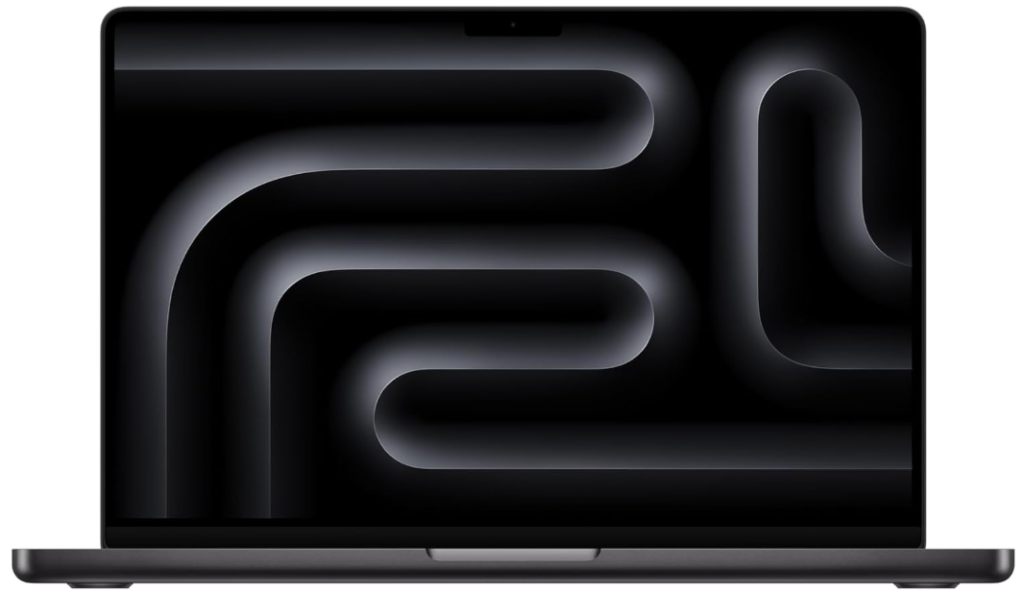
Apple’s M5 Pro and M5 Max chips launched in March 2026, and Apple cites roughly 50 percent higher graphics performance than the previous M4 Pro and M4 Max generation. The M5 Pro starts at 24GB of unified memory, and the M5 Max scales up to 128GB. Because the CPU, GPU, and Neural Engine share one pool, a 48GB or larger configuration can hold quantized language models that would never fit in the 8GB or 12GB of VRAM found on many Windows laptops. The trade-off is software: anything that depends on CUDA does not run natively, and many local image generation guides assume an NVIDIA GPU, so check that your specific tools support Apple silicon before buying.
Pros
Cons
This is best for those who want one laptop for color-critical editing and local AI models without worrying about a separate VRAM limit.
Which Windows Laptop Is Best for CUDA-Based AI Work?
The ASUS ProArt P16 is the best Windows pick for creators who want a color-first display and CUDA-accelerated AI tools, but choose the RTX 5070 Ti or RTX 5090 configuration, since the base RTX 5070 has only 8GB of VRAM. It is built around the AMD Ryzen AI 9 HX 370, not an Intel chip.
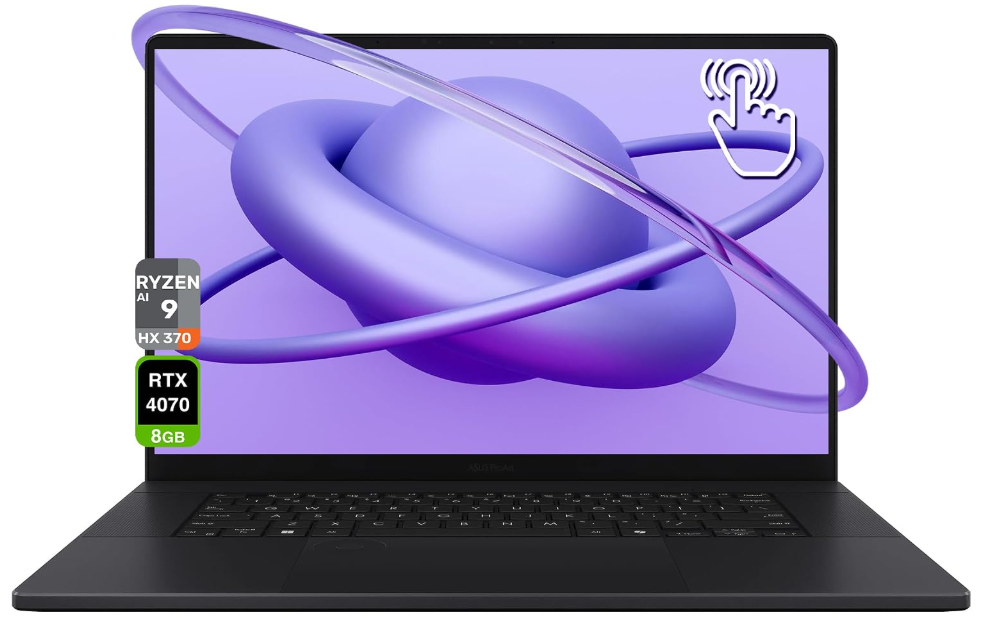
The P16 pairs that 12-core processor, which includes an NPU and carries Copilot+ PC branding, with a 16-inch OLED display available at up to 4K and 120Hz with 1,600 nits of peak HDR brightness and full DCI-P3 coverage, depending on configuration. Memory is soldered LPDDR5X at 7500MHz, with 64GB offered only on some higher configurations, and storage reaches two 2TB drives. The GPU tier determines your AI ceiling: 8GB on the RTX 5070 limits you to SDXL and quantized Flux, 12GB on the RTX 5070 Ti covers FP8 Flux and entry-level LoRA training, and 24GB on the RTX 5090 handles nearly any local image workflow. One reviewer found the RTX 5070 model no quicker than the previous year’s version, so the 2025 update is about the display and graphics options rather than a large leap.
Pros
Cons
This is best for those who want a Windows creator laptop with a top-tier OLED display and CUDA tools, and who will pay for the 12GB or 24GB GPU tier.
Which Laptop Is Best for Cloud AI Tools and Light Local AI?
The MacBook Air 15 is the best choice for photographers and light video editors who use cloud-based AI tools, because it is silent, efficient, and does not need a discrete GPU for those features. It is not built for sustained local AI workloads.
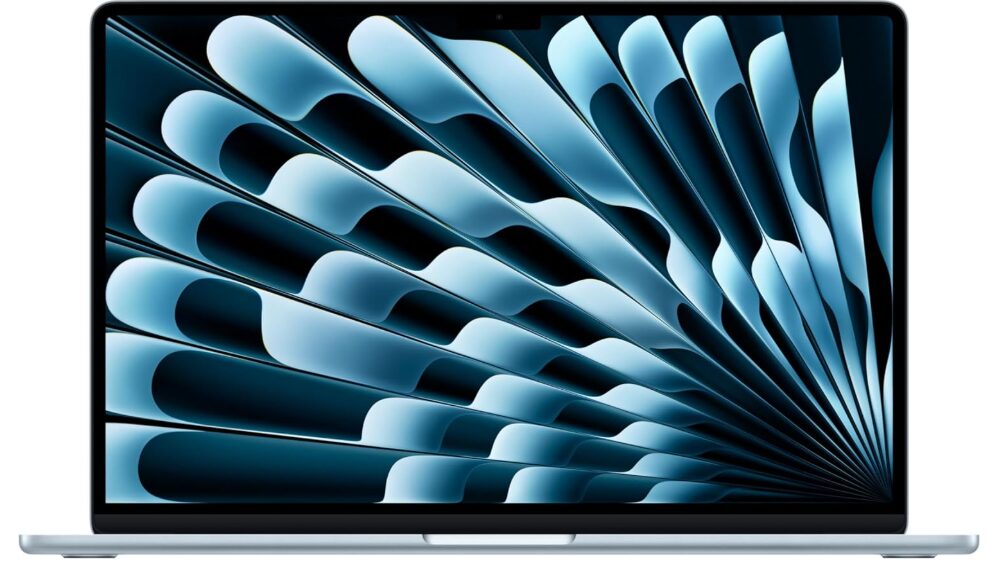
Cloud features like Photoshop Generative Fill depend on Adobe’s servers, so an Air performs them as well as a far more expensive laptop, provided you have a connection and credits. The Air also handles light local tasks, such as running a small language model for caption drafts or using on-device Neural Engine features. Its limits show up in GPU-heavy local work: the fanless design slows under sustained load, and tools like Magic Mask on long clips will keep you waiting. Keep local image generation modest, and if you plan to do more than occasional experiments, step up to a Pro or an RTX laptop.
Pros
Cons
This is best for those who want a light, quiet creator laptop for photo editing, light video, and cloud AI tools, and do not plan to run heavy local AI.
Which Laptop Is Best for Heavy Local Image Generation and GPU-Heavy Work?
The 2026 Razer Blade 16 is the best pick for creators who run local AI image generation or GPU-heavy 3D alongside editing, since it offers up to 24GB of VRAM and a cooling system built for sustained loads in a 14.9mm chassis. It is the highest-ceiling option in this guide.
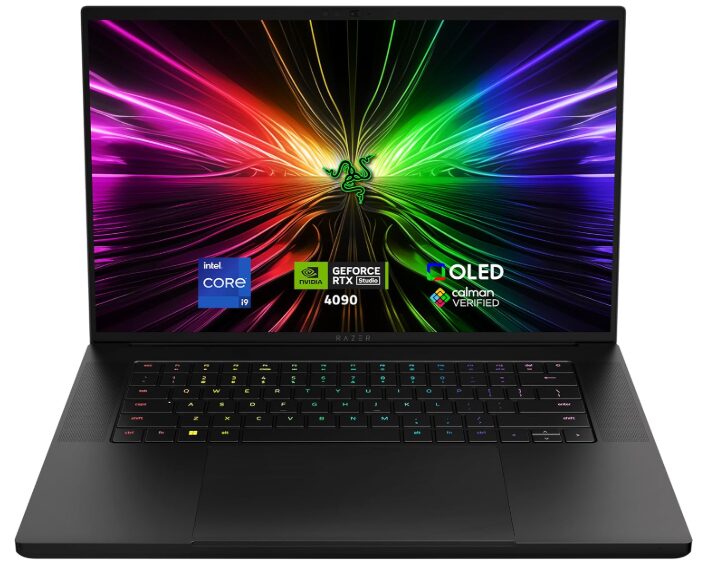
Razer’s 2026 refresh uses the 16-core Intel Core Ultra 9 386H with an NPU rated up to 50 TOPS, paired with an RTX 5070 Ti with 12GB of GDDR7 and up to 140W of GPU power, an RTX 5080 with 16GB, or an RTX 5090 with 24GB. Memory is LPDDR5X-9600 up to 64GB, though the 64GB option appears on the RTX 5080 and RTX 5090 configurations, while the 5070 Ti version is capped at 32GB. The 16-inch QHD+ OLED runs at 240Hz with Calman-verified calibration and full DCI-P3 coverage, and Razer quotes up to 13 hours of productivity battery life, a figure that applies to light use and not to sustained AI jobs. The 24GB RTX 5090 can run a quantized Flux.2 dev model locally, which smaller cards cannot.
Pros
Cons
This is best for those who want maximum local AI image generation and GPU-heavy 3D power in a portable chassis and mostly work plugged in.
Also read: Best Laptops for AI Video Generation in 2026: Top Picks Tested
How Much RAM, VRAM, and Storage Do AI-Assisted Creators Need?
Aim for 32GB of RAM and 1TB of storage as a baseline, with 12GB or more of VRAM or 32GB or more of unified memory if you plan to run local image generation or language models. Local models also take up real disk space, so storage fills faster than for editing alone.
A single FP8 Flux Dev checkpoint is around 12GB on disk, and an SDXL FP16 checkpoint can reach about 7 to 14GB, so a handful of models plus project files can consume several hundred gigabytes. System RAM matters as well: LoRA training guidance calls for about 32GB alongside 12GB of VRAM. Creators on Apple silicon should treat unified memory as both RAM and VRAM and size it for the largest model plus an editing session running at once.
Guidance by workflow:
- Photo editing and cloud AI tools: 16GB to 32GB RAM, 512GB to 1TB storage
- Video editing with Resolve AI features: 32GB RAM, 8GB or more VRAM, 1TB storage
- Local image generation: 12GB to 16GB VRAM, 32GB RAM, 1TB to 2TB storage
- Local LoRA training or large quantized models: 16GB to 24GB VRAM or 48GB or more unified memory, 2TB storage
Also read: How Much VRAM Do You Need for AI Workloads in 2026?
What Mistakes Do People Make When Buying a Laptop for Content Creation?
The most common mistake is paying for NPU TOPS instead of VRAM, since creative AI tools run on the GPU and the NPU mainly handles background effects. The second is expecting local AI video generation to work well on a laptop, when most guidance still recommends cloud services for video.
A third mistake is assuming cloud AI features need a powerful GPU, when Photoshop Generative Fill runs on Adobe’s servers and mostly needs internet and credits. A fourth is buying the 8GB VRAM tier of an RTX laptop and then hitting its ceiling on the first Flux workflow. A fifth is choosing a Mac without checking that your AI tools support Apple silicon, or a Windows laptop without checking its sustained cooling and battery behavior under load.
Mistakes to avoid:
- Prioritizing NPU TOPS over VRAM or unified memory for creative AI work
- Expecting local AI video generation to be practical on a laptop
- Paying for a GPU to speed up cloud features that run on someone else’s servers
- Buying an 8GB VRAM configuration for generative work
- Skipping a check on Apple silicon or CUDA compatibility for your specific tools
Also read: Best Laptops for AI Workloads in 2026: Top Picks Tested
FAQ
No. DaVinci Resolve’s Neural Engine features run on your GPU, so VRAM and GPU power matter more than the NPU rating. The NPU mainly handles background effects and captions.
No, it relies on Adobe’s cloud and uses your account’s generative credits, so it needs an internet connection. Local GPU power helps other features such as Neural Filters and Denoise.
SDXL needs about 8GB at minimum and 12GB to be comfortable, while Flux needs roughly 6 to 8GB at 4-bit, 12GB at FP8, and 16GB or more for the best quality. Newer 32B models need 24GB or more.
Apple silicon can run image generation tools, but NVIDIA with CUDA remains the best-supported path and many guides assume it, so confirm your tools support Mac before buying.
Not for most people. Even heavily quantized models on 8GB cards produce only very short clips, and published guidance recommends cloud services for video.
Yes, the Neural Engine runs locally on your GPU rather than sending footage to a server. The fuller AI toolset sits in the paid Studio version, and the free and paid split has changed between releases, so check the current version.
MacBooks suit color-critical editing and large local language models thanks to unified memory, while Windows laptops with NVIDIA GPUs suit CUDA-based image generation and the widest range of local AI tools.
Final words
The best AI laptop for a content creator depends on whether your AI work runs in the cloud or on your own hardware. For most creators the MacBook Pro with M5 Pro balances display, battery, and memory, while the ASUS ProArt P16 and Razer Blade 16 serve CUDA-based workflows and the MacBook Air 15 covers cloud-first creators on a lighter budget.
Start by listing the AI tools you actually use, then match VRAM or unified memory to the heaviest local model you plan to run. If you only use cloud features, spend on the display and battery instead of the GPU.
Learn more about how to choose an AI laptop: RAM, VRAM, GPU, NPU, and CPU →