

Last Updated on October 19, 2026 by Spencer Lee
AI image generation is slow on a laptop mostly because the model does not fit in the GPU’s memory, the app is running on the CPU instead of the GPU, or the laptop GPU is slower than the desktop card with the same name. Heat and battery power cut speed further, and heavy settings such as Flux, high resolution, and many steps multiply the work. Check VRAM use and which processor is doing the work first, then lower the resolution or switch to a smaller or quantized model. An 8GB laptop is best with SDXL, and 12GB or more is the practical entry point for Flux.
Why This Matters
Generating a picture should take seconds, yet many laptop owners wait a minute or more per image, or watch a progress bar stall for no obvious reason. Because several different limits can cause this, people often spend money on the wrong fix, such as more system RAM, when the real problem is GPU memory, software settings, or power.
This article explains why diffusion models are so demanding, the six most common causes of slow generation on laptops, and which fixes cost nothing. It builds on our guide to the best AI laptops for content creators, which lists how much VRAM each image model needs, and on how to choose an AI laptop for buyers who need to upgrade.
Why Is AI Image Generation So Demanding?
A diffusion model builds an image by running the same large neural network over and over, so total time is the cost of one pass multiplied by the number of steps. More steps, a larger image, or a bigger model all raise the cost.
Classic Stable Diffusion 1.5 runs about 20 to 30 steps, and SDXL commonly runs 30 to 50, each one a full pass through the network. Resolution matters because a larger canvas means more data to process on every step. Newer models such as Flux are much larger than SDXL: the full Flux model needs 24GB or more of VRAM at full precision, compared with about 6.5GB for SDXL. That is why a laptop that makes SDXL images in seconds can take a minute or more with Flux, and why speed claims depend heavily on which model and settings were used.
What drives the time per image:
- Number of steps: each step is a full pass through the model
- Image resolution: larger images mean more computation per step
- Model size: Flux is far heavier than SDXL, and SDXL is heavier than SD 1.5
- Extras such as refiners and ControlNet, which add memory and work
Is Your Laptop Running Out of VRAM?
This is the most common cause. When the model, the text encoders, and the image being built do not all fit in your GPU’s VRAM, the software shuffles parts of the model between VRAM and system RAM, and generation slows dramatically.
Offloading keeps the model running on small GPUs, but it has a steep cost. A published Flux guide says that sequential CPU offloading fits a large model into about 12GB of VRAM, yet expect 30 or more seconds per image on an RTX 4090 compared with 10 to 12 seconds without offloading. On 8GB cards, published guides put Flux at roughly 60 to 90 seconds per image with quantization and CPU offloading, and recommend SDXL instead. One user on a Hugging Face discussion reported SDXL base at 8 seconds per image but 15 minutes when adding the refiner on a card without enough VRAM. That is an anecdote, but it shows how sharp the drop can be once memory runs out. Running other programs that use VRAM, including browsers with hardware acceleration, makes the problem worse.
How to tell and what to do:
- Watch dedicated GPU memory in Task Manager while generating, and if it sits at the limit you are spilling
- Use quantized versions such as GGUF Q4 or FP8, which cut VRAM at some quality cost
- On 8GB, choose SDXL rather than Flux
- Close other apps that use the GPU, and skip the refiner and extra ControlNets if VRAM is tight
Is It Running on Your CPU or Integrated Graphics Instead of Your GPU?
A surprising number of slow setups are not using the GPU at all. If the software falls back to the CPU, generation can take minutes per image instead of seconds, and the fix is a setup change, not new hardware.
Published figures show the gap. Stable Diffusion 1.5 at 512×512 takes roughly 5 to 10 minutes per image on a CPU versus 3 to 5 seconds on a GPU, and SDXL on CPU can exceed 30 minutes. A measured CPU run of FLUX.1-schnell at int4, 3 steps, and 512×512 took about 4 minutes 30 seconds on a Core i7-12700 and needed roughly 30GB of system RAM. Laptops with both integrated and discrete graphics can run a program on the wrong one, so check which GPU the app is using in Task Manager and confirm your software installed a GPU-enabled build. Distilled models designed for one to a few steps, such as SDXL Turbo and SDXL-Lightning, can finish in seconds even on a CPU, which makes them a practical option on a laptop with no discrete GPU.
Checks for the wrong processor:
- Open Task Manager and confirm the discrete GPU shows load during generation
- Set the app to use the high-performance GPU in your operating system’s graphics settings
- Make sure your software installed the GPU version, not a CPU-only build
- With no discrete GPU, try few-step models such as SDXL Turbo or SDXL-Lightning
Is Your Laptop GPU Slower Than the Desktop One With the Same Name?
Yes, usually. A laptop GPU shares a name with a desktop card but runs at lower power and often has less VRAM, so it generates images more slowly than you might expect from the model number.
Laptop GPUs typically run at 80 to 115 watts versus 170 to 200 watts for the desktop equivalents, and one hardware guide estimates 20 to 40 percent slower inference than a desktop card with the same name. VRAM is often lower too: the laptop RTX 5070, for example, ships with 8GB, and a 12GB variant also exists. Power limits also vary between laptop models using the same chip, because manufacturers set each one differently. Our comparison of RTX 5070 vs RTX 5080 laptop for machine learning covers how much VRAM and power each laptop tier gives you.
What to check on your laptop:
- Your actual GPU, VRAM amount, and power limit, not just the model name
- Whether a 12GB or 16GB option existed at purchase, since VRAM matters most for image models
- Whether the laptop is in a performance mode that allows full GPU power
Is Heat or Battery Power Slowing Generation?
Often, yes. Image generation holds the GPU at full load for the whole run, which is the kind of sustained load that causes heat throttling, and many laptops cut GPU power sharply when unplugged.
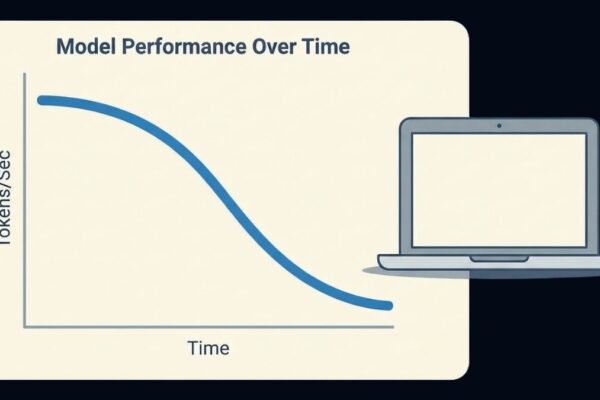
One hardware guide notes that a 30-minute SDXL session runs slower on a laptop than the specs suggest because the cooler cannot keep up. The first few images may be fast and later ones slower as clocks drop. This is normal protective behavior, not damage, and our explainer on why AI makes a laptop so hot covers the temperatures involved. On battery, NVIDIA laptop GPUs typically throttle heavily, so a laptop that is quick at a desk can feel slow in a cafe. The pattern of a fast start that slows over time is also covered in why AI gets slower after running for a while.
Quick fixes for heat and power:
- Plug in the original charger and set the performance power mode
- Keep vents clear and use a hard, flat surface or a stand
- For long batches, a cooling pad can help on laptops with bottom vents.
- Generate in smaller batches and let the laptop cool between long runs
Are Your Settings or Storage Making It Slower?
Sometimes the hardware is fine and the settings are the problem. High resolution, many steps, large batches, and heavy models all raise the cost, and a slow drive can add long waits every time a model loads.
Generation time scales roughly with step count, so cutting from 50 steps to 25 about halves it, and many models give acceptable results at fewer steps, so test your own. Generating at a smaller base resolution and upscaling afterward is often faster than rendering a very large image directly. Switching between checkpoints forces the software to reload the model, and loading time depends on your drive: one guide puts NVMe loads at 3 to 8 seconds, SATA SSDs at 10 to 15, and hard drives at 30 to 40 seconds. A model stored on a slow external drive will take noticeably longer to load, though generation speed is unaffected once it is in memory.
Settings that cost time:
- High step counts, so try fewer steps or a distilled model
- Very large resolutions, so generate smaller and upscale
- Large batch sizes, which raise VRAM use and can trigger spill
- Switching models often, which reloads weights each time
- Storing models on a slow drive, which lengthens every load
What Can You Do About It, and When Is Cloud Better?
Start with the free fixes: confirm the GPU is in use, lower resolution and steps, use a quantized or smaller model, close other GPU apps, and plug in. If the model still does not fit your VRAM, the lasting fix is a GPU with more VRAM or a cloud service for heavy jobs.
An 8GB laptop is best with SDXL and quantized models. A 12GB laptop is the practical minimum for a good Flux experience, and 16GB or more gives comfortable headroom. Published guidance also recommends cloud tools for AI video, since local video generation on a laptop is impractical. Buying more system RAM rarely speeds up image generation on a laptop with a discrete GPU, because the model lives in VRAM, as explained in our article on why more RAM did not make AI faster.
A short checklist:
- Confirm the discrete GPU is running and VRAM is not full
- Lower resolution and steps, or choose a distilled few-step model
- Use SDXL or a quantized model if you have 8GB of VRAM
- Plug in, keep the laptop cool, and use performance mode
- Move models to a fast internal or external SSD
- For Flux at full quality or for video, use more VRAM or cloud tools
FAQ
The most common causes are not enough VRAM, so the model spills into system RAM, or the software running on the CPU instead of the GPU. Heat, battery power, and heavy settings add to it.
It varies widely with the model, steps, and hardware, from a few seconds for small or distilled models on a strong GPU to a minute or more for Flux on an 8GB card. Published figures for the same model differ a lot between cards and software.
It is enough for SDXL at standard settings, though tight with extras like ControlNet. Flux runs on 8GB only with heavy quantization and offloading at roughly 60 to 90 seconds per image.
Laptop GPUs run at lower power, often 80 to 115 watts versus 170 to 200 watts, and sometimes with less VRAM, which can make them 20 to 40 percent slower.
Usually not on a laptop with a discrete GPU, since the model runs in VRAM. More system RAM only helps if the model was spilling or you are generating on the CPU.
Yes, but standard models are slow, with SDXL taking over 30 minutes on a CPU. Few-step models such as SDXL Turbo and SDXL-Lightning can finish in seconds to tens of seconds.
Sustained load heats the laptop and triggers throttling, and on battery power the GPU is limited further. Plugging in and improving cooling usually restores speed.
Final words
AI image generation is slow on laptops because of limited VRAM, the wrong processor doing the work, lower laptop GPU power, heat and battery limits, and heavy settings. Most of these have free fixes before you spend anything.
Check GPU memory and which processor is running, reduce steps and resolution, and match the model to your VRAM, using SDXL on 8GB and Flux on 12GB or more. If you need Flux at full quality, choose a laptop with more VRAM.
Learn more about how to choose an AI laptop: RAM, VRAM, GPU, NPU, and CPU →