
Last Updated on September 27, 2026 by Spencer Lee
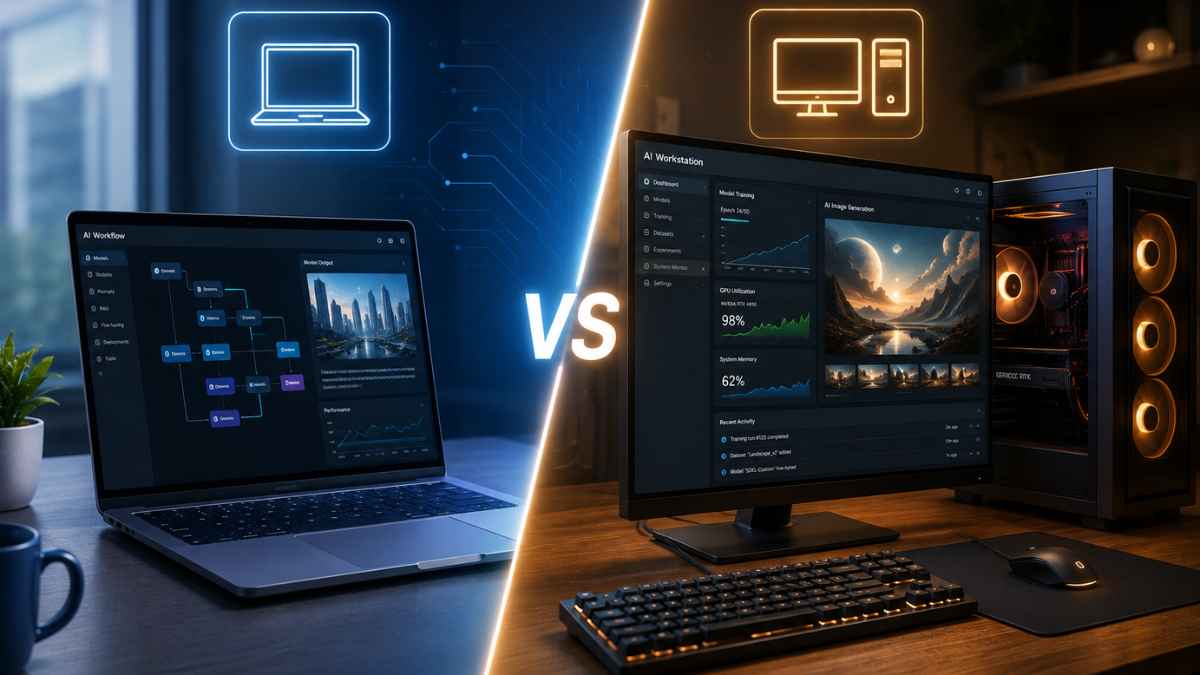
For most AI-assisted knowledge workers in 2026, a high-NPU laptop is the default-smart choice — but anyone running local AI models, fine-tuning LLMs, or working with large datasets should invest in a desktop with a discrete GPU. The arrival of dedicated AI accelerators (NPUs) in mainstream laptops has genuinely closed the gap for inference-level AI tasks, but training workloads, sustained compute, and multi-model pipelines still favor desktop hardware by a wide margin. What you’re doing with AI — not just the fact that you’re using it — is the determining factor.
Why the Laptop vs Desktop Question Has Changed Completely for AI Users
A year ago, the answer for anyone doing serious AI work was almost automatic: desktop, with an NVIDIA GPU, no exceptions. That consensus has fractured. The 2025–2026 hardware cycle delivered a wave of laptops with on-chip neural processing units capable of running inference tasks locally — summarizing documents, generating code, transcribing audio, and running smaller open-source models — without touching the cloud. Apple’s M4 Pro and M4 Max, Qualcomm’s Snapdragon X Elite, and Intel’s Lunar Lake all integrate NPUs that handle these workloads efficiently and without the latency of a cloud API call.
At the same time, the scope of “AI work” has expanded dramatically. For a product manager using Copilot to draft specs, a marketer running Claude to produce content at scale, or a developer using Cursor for AI-assisted coding, the AI workload is largely inference and prompt-response — nothing that strains hardware. For a machine learning engineer fine-tuning a 7B parameter model, a data scientist running GPU-accelerated pipelines, or a researcher training custom vision models, the compute requirements are in an entirely different category. The right hardware depends entirely on which of these descriptions fits your actual day.
By the end of this article, you’ll know exactly where you fall, what hardware your AI workflows require, and which investment makes sense for your budget and role in 2026.
What Kinds of AI Work Actually Stress Your Hardware?
Not all AI tasks are equal in their computational demands, and conflating them leads to expensive mistakes in either direction.
Low-intensity AI work — using cloud-based AI tools (ChatGPT, Claude, Gemini), AI writing assistants, AI-enhanced search, Copilot integrations in Office and Windows, and browser-based AI features — requires almost no local compute. These tasks offload processing to remote servers. A mid-range laptop with a capable NPU handles them as well as a $4,000 workstation. The bottleneck is your internet connection, not your CPU.
Mid-intensity AI work — running small open-source models locally (7B–13B parameter LLMs via Ollama or LM Studio), AI image generation at lower resolutions, real-time transcription, on-device code completion, and AI-enhanced video calls — benefits meaningfully from dedicated NPU hardware or integrated GPU performance. This is where the modern Copilot+ PC laptop category was specifically designed to compete, and it does so credibly.
High-intensity AI work — fine-tuning large language models, training custom models from scratch, running multi-modal pipelines, processing large datasets with GPU acceleration (PyTorch, CUDA, JAX), and generating high-resolution AI imagery at scale — still requires discrete GPU hardware. NVIDIA’s RTX 40-series and 50-series GPUs, with their CUDA cores and dedicated Tensor cores, remain unmatched for this category of work. A laptop GPU in the RTX 4070 class can participate, but thermal throttling and VRAM constraints (typically 8–16GB on laptop GPUs vs. 24–48GB on desktop cards) limit how much it can actually do before hitting a ceiling.
How Do NPUs, CPUs, and GPUs Each Handle AI Tasks in 2026?
Understanding which processor type handles which AI workload is essential for making the right hardware call.
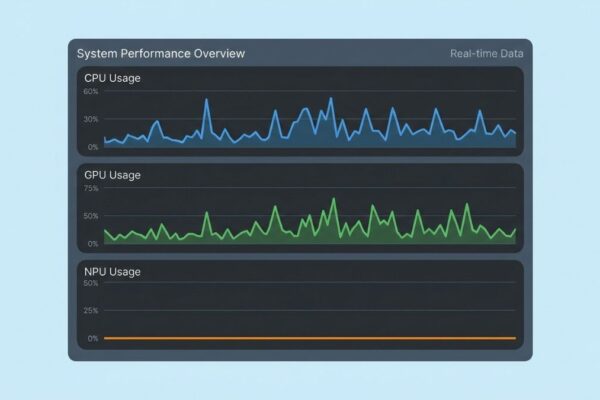
NPUs (Neural Processing Units) are purpose-built for inference — running pre-trained models to produce outputs. They’re efficient, fast for their intended task, and consume minimal power. In 2026, they’re standard in Qualcomm Snapdragon X, Apple M4, Intel Core Ultra 200V, and AMD Ryzen AI 300 series chips. For everyday AI tool usage and local small-model inference, they are genuinely excellent. What they cannot do is training — the compute pattern is fundamentally different and NPUs are not architected for it.
CPUs handle AI tasks that aren’t parallelizable — orchestrating workflows, running logic between model calls, managing agentic pipelines that chain multiple AI tools together. A fast multi-core CPU matters more than most people expect for AI development work, particularly for preprocessing data and managing complex Python environments.
GPUs (Graphics Processing Units) are the workhorse of serious AI compute. Their massively parallel architecture maps perfectly onto the matrix math that underlies neural network training and large-scale inference. Desktop GPUs have a decisive advantage over their laptop counterparts in two dimensions: VRAM capacity and sustained thermal performance. An RTX 4090 desktop card carries 24GB of GDDR6X VRAM and can sustain full load indefinitely. The best laptop GPU — the RTX 4090 mobile — carries 16GB and throttles under sustained load due to thermal limits. For users whose work requires VRAM above 16GB, a desktop is the only practical option short of a cloud instance.
Which Is Better for Running Local AI Models: Laptop or Desktop?
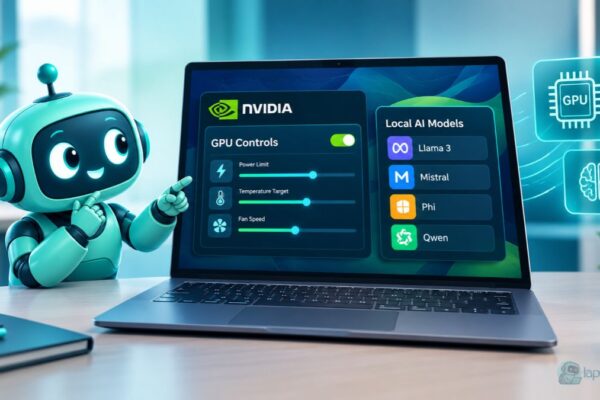
Running local LLMs has become a mainstream workflow in 2026, driven by privacy concerns, latency requirements, and the maturity of tools like Ollama, LM Studio, and GPT4All. The hardware requirements depend on model size.
Models under 7 billion parameters run comfortably on Apple Silicon laptops (M3 and above) using unified memory, and on NPU-equipped Windows laptops for supported quantized formats. Response speeds are practical for real-time use, and the experience is comparable to a cloud API call for most conversational tasks.
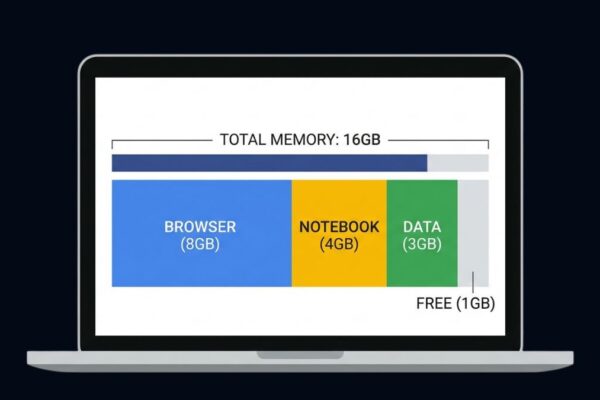
Models in the 13B–34B range require at minimum 16GB of VRAM or unified memory to run at usable speeds. Apple MacBook Pro M4 Pro (24GB unified memory) and M4 Max (48GB) handle this range well. Windows laptops are constrained here — most carry 16GB VRAM maximum, which fits 13B models only with aggressive quantization.
Models above 70B parameters are effectively desktop territory. Even Apple’s most powerful MacBook Pro configuration (128GB unified memory on M4 Max) can technically load these models, but inference speeds become impractical for real-time use. Desktop systems with dual-GPU setups or professional GPUs with 48GB+ VRAM (RTX 6000 Ada, H100 PCIe) handle this range, albeit at significant cost.
Key thresholds for local model runners:
- Under 7B params: Any modern NPU laptop handles this well
- 7B–13B params: 16GB unified memory or VRAM minimum; M3 Pro/M4 Pro class or RTX 4070 Ti
- 13B–34B params: 24GB+ unified memory or VRAM; M4 Pro/Max or RTX 4090 class
- 70B+ params: Desktop with high-VRAM GPU or Apple Silicon with 64GB+ unified memory
How Does the Cost Equation Compare for AI Hardware in 2026?
The price-to-AI-performance ratio still favors desktops for GPU-dependent workloads. An RTX 4090 desktop GPU delivers roughly twice the AI training throughput of the RTX 4090 mobile at a similar cost per card — and the desktop card can be paired with 128GB of system RAM and upgraded independently when the next generation arrives.
For inference-focused AI work, the equation is more competitive. An Apple MacBook Pro M4 Pro at $1,999 delivers NPU and unified memory performance that outperforms many desktop configurations at the same price for inference tasks, with the added value of portability. The per-performance-dollar calculation genuinely goes laptop’s way in this use case.
The hidden cost factor is longevity. Desktop AI workstations can be partially upgraded — new GPU next year, more RAM the year after — without replacing the entire machine. Laptops cannot. When NVIDIA’s RTX 50-series becomes standard or the next generation of NPU architecture arrives, desktop users can upgrade a single component. Laptop users must buy an entirely new machine.
What About Ergonomics for Long AI Development Sessions?
AI development work — writing training scripts, orchestrating agent pipelines, debugging model outputs, analyzing results — involves sustained screen time at high cognitive load. Ergonomics are not a secondary consideration; poor setup choices degrade output quality and cause real physical harm over months of daily use.
Laptops used at desk level place the screen below natural eye height, forcing a chin-down posture that strains the cervical spine. Used for even a few hours daily, this compounds into neck and shoulder problems that are slow to develop and slow to recover from. The solution — a laptop stand or arm that raises the screen to eye level — is effective but requires adding an external keyboard and mouse, which means you’ve partially rebuilt a desktop setup around a laptop.
Desktop monitors, positioned correctly at eye level and arm’s length, support natural posture throughout an eight-plus-hour session. Wide monitors or dual-monitor setups — standard in serious development environments — benefit from the desktop’s native multi-display support (typically two to four outputs without a hub). For AI practitioners who split screen real estate between a code editor, a model output terminal, a data visualization panel, and documentation, two 27-inch monitors is a workflow multiplier that a laptop screen fundamentally cannot replicate.
If you’re buying a laptop for AI work and planning to use it at a desk most of the time, budget for:
- A monitor arm or adjustable laptop stand
- An external 27-inch or 32-inch monitor (IPS or OLED for color accuracy)
- A full-size keyboard and wireless mouse
- A USB-C/Thunderbolt dock with enough ports to run all of the above from one cable
This hybrid configuration costs $300–$600 in accessories but gives you laptop portability without sacrificing ergonomic quality.
How Do Leading AI Laptops and Desktops Stack Up in 2026?
Top AI laptops in 2026 for professional use:
- Apple MacBook Pro M4 Max (16-inch) — Best unified memory for local LLM inference; 48–128GB options; best-in-class NPU for macOS AI tools
- Dell XPS 15 with RTX 4070 — Strong Windows GPU laptop for mid-intensity AI work; good CUDA support for PyTorch
- Lenovo ThinkPad X1 Carbon Gen 13 (Snapdragon X Elite) — Best battery life and NPU performance for cloud-AI-dependent workflows on Windows
- ASUS ProArt Studiobook 16 (RTX 4090 mobile) — Highest GPU ceiling available in a laptop; suited for serious on-device training at the cost of battery life and portability
Top AI desktops in 2026 for professional use:
- Apple Mac Studio M4 Max / M4 Ultra — Exceptional unified memory bandwidth; up to 192GB in Ultra config; silent, compact, purpose-built for AI inference and creative workloads
- Custom PC with RTX 4090 or RTX 5090 — Maximum CUDA performance for model training; fully upgradeable; best choice for NVIDIA-ecosystem ML work
- Apple Mac Pro M4 Ultra — Enterprise-grade AI workstation; 192GB unified memory; suited for production inference serving and large model work
- Mini-PC with RTX 4080 — Compact desktop option for users wanting near-laptop footprint with discrete GPU; Minisforum and ASUS NUC offerings are competitive in 2026
FAQ: Laptop vs Desktop for AI Work
Yes, with significant caveats. Fine-tuning a 7B model with LoRA adapters is feasible on a laptop with an RTX 4070 or Apple M4 Pro. Full fine-tuning of models above 13B parameters is practically desktop or cloud territory due to VRAM and sustained thermal requirements.
It depends on your stack. NVIDIA dominates CUDA-dependent workflows — PyTorch, most ML libraries, and the broader ML ecosystem are built around CUDA. Apple Silicon wins for inference efficiency, macOS-native AI tooling, and unified memory capacity per dollar. If you’re doing Python-based ML development with standard frameworks, NVIDIA is safer. If you’re doing inference-heavy or creative AI work on macOS, Apple is compelling.
These are cloud-inference tools — the AI processing happens on remote servers. Any modern laptop with 16GB RAM and a stable internet connection runs them without issue. Your hardware spec has essentially no impact on their performance.
Not for cloud-based AI tools, where the NPU is irrelevant. For local model inference — running Ollama, Whisper, or Stable Diffusion locally — an NPU improves efficiency and reduces CPU load, but dedicated GPU hardware still outperforms even the best laptop NPUs for most model types.
Gaming laptops with RTX 40-series GPUs are legitimately useful for mid-intensity AI work and provide CUDA support for PyTorch. Their main weaknesses are battery life (poor under GPU load), fan noise, and short upgrade cycles. They’re a reasonable entry point for AI development if budget is a constraint, but not a long-term workstation solution.
For training workloads, GPU VRAM is the primary constraint — it determines the maximum model size you can work with. For inference and agentic AI workflows, system RAM matters more because models load into it. If your work spans both, prioritize VRAM first, then system RAM.
For cloud-AI-dependent development and local inference of models up to 7B parameters, yes. For local model training or fine-tuning above 7B parameters, a $1,500 laptop will hit hardware ceilings quickly. In that budget, a desktop with a discrete GPU offers considerably better AI compute per dollar.
RTX 50-series laptop GPUs (RTX 5080, 5090 mobile) began shipping in early 2026. If you’re buying now, the 50-series mobile GPUs offer meaningful improvements in VRAM and AI throughput over the 40-series. However, they carry a significant premium and still trail their desktop counterparts in sustained performance. If your timeline is urgent, buy now; if you can wait 3–6 months, prices on 50-series mobile hardware should normalize.
Bottom Line: Match Your Hardware to Your AI Workload
The laptop-versus-desktop question for AI work in 2026 is really a question about what you’re doing with AI — and how seriously you’re doing it. Using cloud AI tools, running AI coding assistants, and working with small local models are tasks that modern laptops handle confidently, with NPU hardware now purpose-built for exactly these workflows. Fine-tuning models, training from scratch, running large local LLMs, and building production AI pipelines are tasks where desktop GPU hardware still holds a decisive and practical advantage.
Start by auditing your actual AI workload for a week: are you primarily a consumer of AI tools, or are you running compute jobs that take minutes and hours rather than seconds? Let that audit drive the hardware decision. If you’re in the consumer-to-mid tier, a Copilot+ laptop or Apple Silicon MacBook Pro will serve you well for years. If you’re running serious compute, invest in a desktop GPU setup — or supplement your laptop with a cloud GPU instance (Lambda Labs, Vast.ai, RunPod) for training runs until a desktop investment makes financial sense.