

Last Updated on October 13, 2026 by Spencer Lee
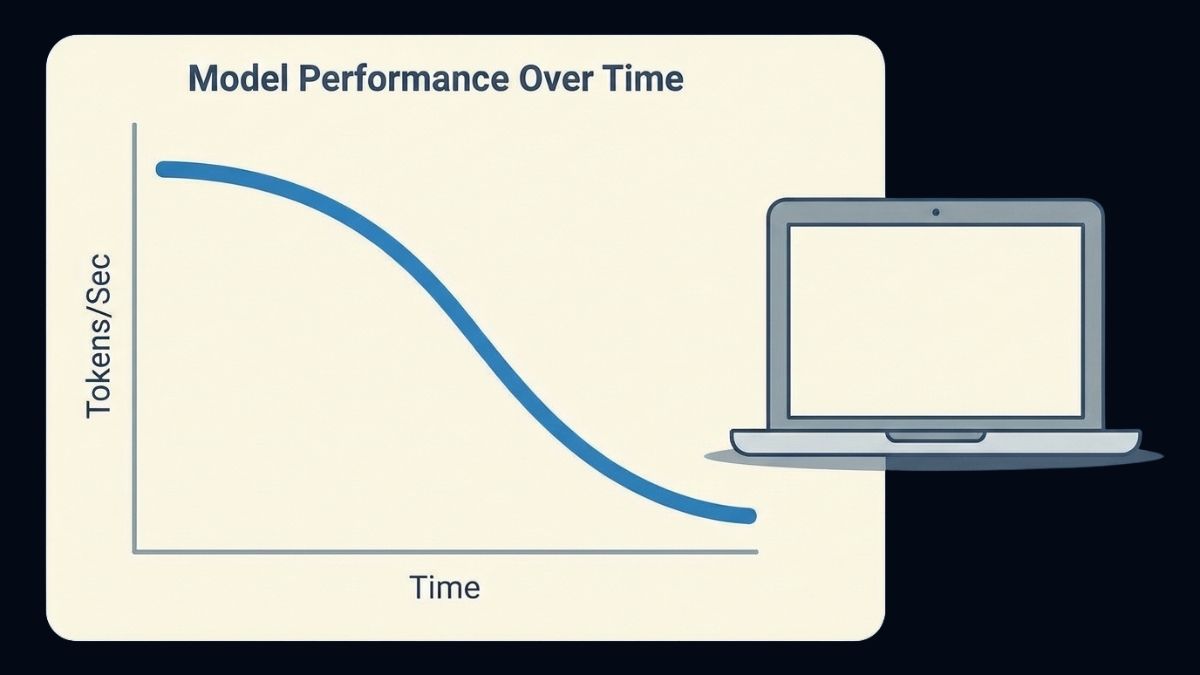
Local AI gets slower over time for four main reasons: the conversation grows and the model has more to process, memory fills and part of the model spills to slower storage, the laptop heats up and throttles, or the laptop is on battery or idle long enough for the model to unload. Longer chats slow both the wait for the first word and the speed of each word after it. Most slowdowns are fixable by shortening context, checking where the model is loaded, plugging in, and improving cooling. A fresh chat often restores full speed.
Why This Matters
Running an AI model on your own laptop is fast at first and then often feels like it is getting worse. The first answer arrives quickly, the tenth takes longer, and after an hour the laptop is hot and the replies crawl. Because the cause is usually one of a few specific limits, guessing leads people to buy hardware they do not need or blame the model when the real problem is a setting.
This article explains the four causes in plain terms, shows what the published tests actually measured, and gives a short checklist to find which one is hitting your laptop. It applies to common local tools built on llama.cpp, including Ollama and LM Studio, and it ties back to the hardware limits covered in our guides on how to run a local LLM with Ollama and how to choose an AI laptop.
What Does “AI Getting Slower” Actually Mean?
It can mean two different things: a longer wait before the first word appears, or fewer words per second once the reply is flowing. Local tools measure these separately, and they have different causes.
The wait before the first word is called prefill: the model reads your whole prompt and conversation history before it answers. The speed of the reply itself is called decode, usually measured in tokens per second. Prefill grows with how much text the model must read, while decode is limited mostly by memory bandwidth. In Ollama you can see both by running a model with the verbose flag, which prints a prompt eval rate for prefill and an eval rate for decode. Watch the eval rate, but also notice the delay before the first token, since in long chats that silence is what feels like freezing.
Two speeds to track:
- Prefill (time to first token): grows as the conversation and documents get longer
- Decode (tokens per second): limited by memory bandwidth and drops slightly as context grows
- Both are worse once memory is full, the laptop is hot, or power is limited
Does a Longer Conversation Slow Down Local AI?
Yes. Every message you send and every reply adds to the conversation history the model must process, so both the delay before replies and the speed of replies get worse as a chat grows. Starting a fresh conversation usually brings speed back.
The model stores a record of every earlier token called the KV cache, and each new token it generates has to read through that growing record. Published tests show the pattern. One test on a laptop found that 200 tokens of input took about 1 second to process while 9,700 tokens took about 55 seconds, and generation speed fell from about 16.8 to 15.4 tokens per second, roughly 8 percent slower. Another measured prompt processing falling from 198 to 177 tokens per second near 10,000 tokens, about 10 percent slower. A separate explainer gives a rule of thumb that a model starting a session at 40 tokens per second may be near 30 ten thousand tokens in. Benchmarks taken on short prompts flatter the speed you will see in a long chat.
Tools also reuse work: llama.cpp keeps a prefix cache, so repeating the same long start of a conversation can be far faster the second time, with one test showing a warm call about 396 times faster. The slowdown is worst when each message adds a lot of new text, such as pasting documents.
What longer context does:
- Slows prefill sharply, so the first word takes longer to appear
- Slows decode modestly, roughly 8 to 25 percent in the published examples
- Eats memory, which leads to the bigger slowdown described next
Why Does Running Out of VRAM or RAM Make AI Crawl?
When the model plus the KV cache no longer fit in fast memory, part of the work spills to slower system memory, and speed can fall sharply. This is the most common reason a chat that started fast becomes very slow.
The KV cache grows linearly with the number of tokens. For Llama 3.1 8B in FP16, it costs about 0.125MB per token, so a 4,096-token chat uses roughly 0.5GB and a 32,768-token chat roughly 4GB. A 7B model at 4-bit uses about 3.5GB for weights, and a 32K context can add around 4.5GB more, so a laptop that handled the model fine can run out of room after a long conversation. Larger models cost more per token: a 70B-class model with grouped-query attention uses about 0.31MB per token, around 1.25GB at 4K tokens and about 40GB at 128K. When VRAM fills, layers get offloaded to system RAM, which one diagnostic guide puts at 10 to 15 times slower bandwidth.
The setting that controls this is context length, and the defaults vary. Ollama’s default depends on the version, the model, and your available VRAM, llama.cpp defaults to 2,048 tokens unless you set one, and LM Studio can default to a model’s maximum, sometimes 128K. Ollama also reserves memory for the configured context length when the model loads, whether or not you use it. On Apple silicon the same logic applies to unified memory, where the model, the cache, and your other apps all share one pool.
What to check for memory pressure:
- Run ollama ps to see how much of the model is on the GPU versus the CPU
- Lower the context length to what you actually need, often 4,096 tokens for chat
- Start a fresh conversation to release the accumulated cache
- Close other apps that use memory, since they compete for the same pool
Does Heat Make AI Slower Over Time?
Yes. AI jobs hold the CPU and GPU near full load for a long time, so the laptop heats up, and once chip temperatures reach the 85 to 90 degree Celsius range the processor lowers its clock speed to protect itself. That throttling is why a laptop can feel fast for the first few minutes and then settle at a lower speed.
This is normal behavior and not damage. It happens more in thin laptops with small cooling systems, and in fanless designs such as the MacBook Air, which can slow under long, heavy loads even when plugged in. A clue that heat is the cause is a speed that starts high, drops after several minutes, and then stays lower rather than steadily getting worse. Our explainer on why AI makes a laptop so hot covers the temperatures and what throttling means. A cooling pad can help on laptops with bottom vents by a few degrees, as covered in our AI laptop accessories guide, but it cannot fix a laptop that is simply too thin for the workload.
Signs of heat throttling:
- Speed is good at the start, then drops after a few minutes and stays lower
- Fans run hard, or the laptop is quiet but slow, which can mean silent throttling
- Monitoring software shows clock speeds falling while temperatures sit near the limit
Does Battery Power Slow Down Local AI?
Yes, especially on Windows laptops with NVIDIA graphics. Many laptops limit power draw when unplugged, so the GPU runs well below its plugged-in speed, and a model that felt fine at your desk can feel slow on battery.
NVIDIA laptop GPUs typically throttle significantly on battery power because the battery cannot supply the same wattage as a wall outlet, while Apple silicon holds closer to its plugged-in performance when unplugged. Windows power modes and battery saver settings can lower performance further. If your local AI feels slow only away from your desk, plug in and set the laptop to its performance mode before changing anything else. A higher-wattage charger or a spare original charger matters for the same reason, as covered in our accessories guide.
Quick power checks:
- Plug in the original charger before running long jobs
- Set the operating system to its performance power mode
- Compare speed plugged in versus on battery to confirm the cause
- Remember that sustained local AI drains the battery much faster than office work
Why Is the First Message Slow After a Break?
Because many tools unload the model after a period of inactivity, and the next message has to load it back from disk. In Ollama the default is to keep a model in memory for 5 minutes after the last request, then free the memory.
If you step away for lunch and come back, the first message pays the full load time before any answer begins. In one published measurement the first request took about 8.4 seconds including the load, while a request within the 5-minute window took about 0.7 seconds. The tradeoff is memory: keeping the model loaded holds several gigabytes of RAM or VRAM that your other apps cannot use. You can raise the idle time with the OLLAMA_KEEP_ALIVE setting, for example 30 minutes or a value of -1 to never unload, which makes sense when one model is your main tool and you have memory to spare. Loading from a slow external drive makes this worse, which is why a fast internal drive or a fast portable SSD helps load times, though not generation speed.
How Do You Find Which Slowdown You Have and Fix It?
Check four things in order: where the model is running, how long the context has grown, whether the laptop is throttling, and whether it is on battery. Each has a quick test and a direct fix.
Start with ollama ps, which shows the split between GPU and CPU. A model that is partly on the CPU is the biggest red flag and means memory is full. Next, see whether starting a new chat restores speed, which points to context growth. Then watch clock speeds and temperatures during a long run to catch throttling, and compare plugged-in versus battery speed. Common fixes include setting the context length to around 4,096 tokens for ordinary chat, turning on Flash Attention where your tool supports it to cut memory use as context grows, and starting new chats for new topics. KV cache quantization to 8-bit roughly halves the cache memory, but one test found 4-bit cache quantization could be dramatically slower at long context, so try 8-bit first and revert to the default if speed gets worse. For long documents, a retrieval approach that feeds only the relevant passages is better than pasting everything into one chat.
A short checklist:
- Run ollama ps and confirm the model is fully on the GPU
- Set the context length to what you need, and start a fresh chat for new topics
- Plug in, use performance mode, and keep vents clear
- Raise OLLAMA_KEEP_ALIVE if the first message after a break is slow
- If a model still crawls at short context, it is too big for your memory, so use a smaller model or more RAM or VRAM
FAQ
The conversation history grows, so the model has more to read for every message, and long chats can also fill memory until part of the model spills to slower storage. Heat throttling can add to it after several minutes of sustained load.
Usually yes. A new chat clears the accumulated context and releases the KV cache, which restores prompt processing speed and frees memory.
In published tests, generation speed dropped roughly 8 to 25 percent over about ten thousand tokens, while the delay before the first word grew much more, from about 1 second at 200 tokens to about 55 seconds at about 9,700 tokens on one laptop.
Ollama unloads a model after 5 minutes of inactivity by default, so the next message has to reload it from disk. Setting OLLAMA_KEEP_ALIVE to a longer time or -1 keeps it loaded.
It can reduce throttling on laptops with bottom intake vents by a few degrees, but it does nothing for memory spill, context growth, or battery limits, and it does not help fanless laptops.
No. Thermal throttling is a protective feature that lowers speed to keep temperatures safe. The cost is slower performance during the task, not hardware damage.
About 4,096 tokens is enough for most conversations, and a shorter context frees memory and avoids spill. Raise it only when you need long documents, and budget extra memory when you do.
Final words
Local AI gets slower over time because of growing context, memory spill, heat, and power limits, and each has a specific fix. Longer chats slow both the wait for the first word and the speed of replies, and a model that no longer fits in fast memory slows far more.
Check ollama ps first, shorten the context, plug in, and start fresh chats for new topics. If a model is slow even at short context, the model is too big for your memory, and the answer is a smaller model or a laptop with more RAM or VRAM.
Learn more about how to choose an AI laptop: RAM, VRAM, GPU, NPU, and CPU →