


Last Updated on October 12, 2026 by Spencer Lee
AI tasks heat up a laptop because they keep the CPU and GPU running at a sustained, near-constant high load, unlike most everyday tasks that use short bursts of processing power. Running a local AI model, generating images, or training anything pushes both processing cores and memory chips to work continuously for minutes or hours at a time, and that steady heat output overwhelms the compact cooling systems found in most laptops. This is a normal, expected reaction to a genuinely demanding workload, not a sign that something is broken, though it can shorten how long your laptop performs at full speed.
Why This Matters
A laptop that stays cool during video calls and browsing but turns uncomfortably warm the moment you run a local AI model or generate an image is not malfunctioning, it is responding exactly as designed to a fundamentally different kind of workload. Understanding why this happens helps you tell the difference between normal thermal behavior and an actual hardware problem, and it explains why two laptops with similar specs can feel completely different once AI tasks enter the picture.
By the end of this article you will know exactly which components generate the heat during AI workloads, why AI heat behaves differently than gaming heat, whether thermal throttling is actually harming your laptop, and what practical steps reduce the heat without needing new hardware.
Why Does AI Workload Heat Differ From Normal Laptop Use?
AI workloads generate more heat than typical laptop use because they keep the CPU and GPU under sustained, continuous load, while everyday tasks like browsing or document editing only demand short bursts of processing power with plenty of idle time in between. Sustained load is what actually causes temperatures to climb, not peak performance on its own.
During normal use, a processor spikes briefly to handle a task, then drops back to a low-power state almost immediately, giving the laptop’s cooling system time to recover between bursts. Running a local language model, generating images, or training anything keeps the same processor pinned near its performance ceiling continuously, and that steady state is exactly what cooling systems struggle with, since there is no recovery window for heat to dissipate. This is also why AI heat behaves differently from gaming heat: gaming workloads tend to produce spikier, more variable heat cycles as scenes and demands shift, while AI inference and training produce a flatter, sustained thermal plateau that keeps pressure on the cooling system for much longer stretches at a time.
Why sustained load matters more than peak power:
- Everyday tasks: brief processing bursts with idle recovery time in between
- Gaming: variable, bursty heat cycles that shift as scenes and demands change
- AI inference and training: a sustained, near-constant thermal plateau with little recovery time
- Sustained load gives heat more time to build up before a cooling system can catch up
What Parts of Your Laptop Actually Get Hot From AI Tasks?
The GPU core, GPU memory (VRAM), the CPU, and the power delivery components called VRMs all generate heat during AI tasks, and modern laptop thermal designs often struggle to manage all of them at once rather than just one. This is different from older assumptions that treated the processor core as the only real source of heat.
The GPU core handles the bulk of the parallel computation behind most AI tasks and is the most obvious heat source, but it is rarely the only bottleneck. The CPU still plays a real role, especially for tasks involving memory shuffling, data loading, and disk access while a model runs, and smaller laptop chassis with limited VRM airflow can see CPU throttling appear surprisingly early during AI workloads. Power delivery components, the VRMs that regulate voltage to the GPU and CPU, generate their own heat under sustained load, and in a cramped laptop chassis that heat has fewer places to escape to compared to a full-size desktop.
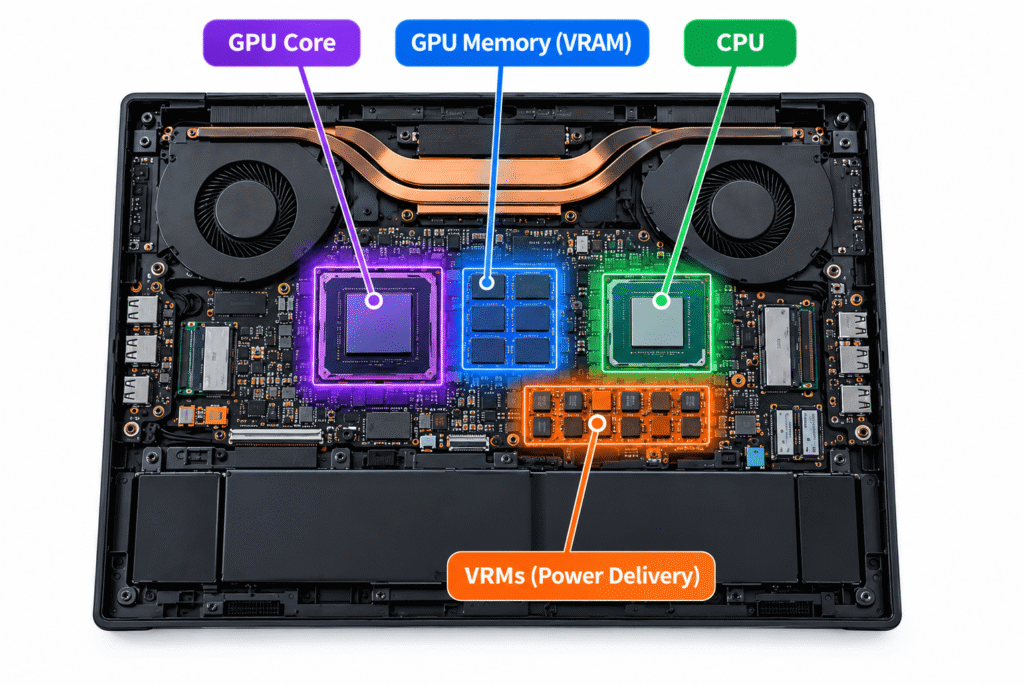
The real sources of AI-related heat:
- GPU core: handles the bulk of parallel computation, the most visible heat source
- GPU memory (VRAM): generates significant heat of its own, especially under sustained use
- CPU: manages data loading and memory shuffling, and can throttle early in cramped chassis designs
- VRM (power delivery): regulates voltage to the GPU and CPU and adds its own heat load in a tight space
Why Does VRAM Heat Up More Than People Expect?
GPU memory, specifically GDDR6X and similar high-speed VRAM, generates a surprising amount of heat during sustained AI workloads, and it is often the real reason a laptop keeps throttling even after someone has already tuned down the GPU core itself. Most cooling advice focuses entirely on the core and overlooks this.
Techniques like undervolting are effective at reducing heat generated by the GPU core, but they do little to help VRAM specifically, since memory modules draw and dissipate power through a different path. In laptops where the GPU core and VRAM share the same heat pipe system, constant heat from the memory modules can gradually heat-soak the entire copper pipe network, leaving little capacity left to carry away heat from the core even if the core itself has been tuned down. Long AI sessions, particularly extended image generation or local model inference runs, give VRAM plenty of time to heat-soak a laptop’s shared cooling system in a way that shorter, bursty tasks rarely do.
Why VRAM deserves more attention than it usually gets:
- VRAM draws and dissipates power through a different path than the GPU core, so core-focused fixes do not fully address it
- Shared heat pipe designs let VRAM heat-soak the same copper pipes meant to cool the GPU core
- Long, sustained AI sessions give VRAM far more time to build up heat than short bursts of activity
- Memory-heavy AI tasks, including long-context model inference, place extra strain specifically on VRAM
Also read: How Much VRAM Do You Need for AI Workloads in 2026?
Does an NPU Run Cooler Than Using the CPU or GPU for AI Tasks?
Yes, an NPU is genuinely more power-efficient than running the same AI task through the CPU or GPU, but that efficiency advantage shrinks once you account for everything else running on the laptop at the same time. An NPU workload does not run in isolation inside a quiet, empty chassis.
NPUs are purpose-built for efficient, low-power inference, and tasks like background blur, live captions, and on-device search genuinely use far less power running through an NPU than they would through a CPU or GPU handling the same work. The problem is that nobody uses an NPU-powered feature by itself: it runs alongside whatever else is active on the laptop at that moment, including background browser tabs, video calls, and other applications, all of which generate their own heat inside the same small, shared chassis. That combined heat output shares the same limited thermal budget, which means an efficient NPU task can still contribute to a hot-feeling laptop simply because it is sharing space with everything else.
Why NPU efficiency does not eliminate heat entirely:
- NPUs genuinely use less power than CPU or GPU for the same small-scale inference task
- NPU workloads run alongside other active applications, not in isolation
- All components share the same limited thermal budget inside a compact laptop chassis
- A laptop can still feel hot during NPU-heavy tasks simply due to everything else running at the same time
Is Thermal Throttling Bad for Your Laptop?
No, thermal throttling is a built-in safety feature designed to protect your laptop’s hardware, not a sign of damage or a malfunction. It automatically reduces processing speed once internal temperatures cross a safe threshold, trading some performance for continued safe operation.
Modern processors monitor what is called a junction temperature, essentially the hottest measurable point inside the chip, and once that reading crosses roughly 85 to 90 degrees Celsius, the chip automatically reduces its clock speed to bring temperatures back down. This is normal behavior during AI workloads, gaming, 3D rendering, and other sustained demanding tasks, and temperatures in the 75 to 90 degree range are generally considered acceptable for modern laptops under heavy load. The real cost of throttling is slower performance, not hardware damage, since the entire mechanism exists specifically to prevent the kind of overheating that could cause lasting harm.
What thermal throttling actually means for your laptop:
- It is a protective mechanism, not a sign of hardware failure or damage
- Triggered once junction temperature crosses roughly 85 to 90 degrees Celsius
- Temperatures between 75 and 90 degrees Celsius are considered normal under heavy AI or gaming load
- The practical cost is reduced performance during the task, not long-term harm to the hardware
How Can You Tell If Your Laptop Is Actually Throttling?
Monitoring software that reports both core temperature and junction, or hot spot, temperature is the most reliable way to confirm throttling, since the junction reading is what actually triggers it, and it always runs higher than the general core temperature shown by default. A laptop that stays unusually quiet under heavy AI load is not necessarily running efficiently, it may simply be throttling hard without telling you.
Fan noise is a misleading indicator on its own, since a laptop that ramps its fans up loudly is often working to prevent throttling, while a suspiciously silent laptop under the same heavy load may already be throttling significantly and just not surfacing that information to the user. Checking actual clock speeds during a sustained AI task, and watching whether they drop and stay lower after the first few minutes, is a more reliable sign than temperature alone, since a chip can run warm without necessarily throttling, depending on its specific thermal limits.
Signs worth checking for:
- Use monitoring software that reports junction or hot spot temperature, not just a general core reading
- A silent laptop under heavy AI load is not automatically a good sign, it may be throttling quietly
- Watch actual clock speeds during a sustained task rather than relying on fan noise alone
- A clock speed that drops and stays lower after the first few minutes of a task is a clear sign of throttling
How Do You Keep Your Laptop Cooler During AI Workloads?
Improving airflow, keeping vents clear, cleaning out dust buildup, and using an external cooling pad all help meaningfully during sustained AI workloads, though a thin laptop will always have a lower ceiling than a bulkier one built with more cooling headroom. For the heaviest, longest AI tasks, moving the work to cloud compute instead of running it locally is often the more realistic fix.
Simple habits make a real difference: using a laptop on a hard, flat surface instead of a bed or couch keeps intake vents from being blocked, and periodically cleaning out dust or replacing degraded thermal paste restores cooling performance that naturally declines over time. Closing unnecessary background applications during a heavy AI task frees up thermal budget that would otherwise be shared across everything running at once. For anyone regularly running long, sustained local AI workloads, such as extended image generation sessions or local model fine-tuning, a laptop with a larger chassis and a more robust cooling solution, such as a dedicated vapor chamber design, will handle sustained heat far better than a thin, compact ultrabook ever can.
Practical steps that actually help:
- Use the laptop on a hard, flat surface to avoid blocking intake vents
- Clean out dust and consider reapplying thermal paste if the laptop is a few years old
- Close unnecessary background applications during heavy AI tasks to free up thermal budget
- Use an external cooling pad for noticeable, if modest, temperature improvements during long sessions
- For very long or frequent heavy AI workloads, a laptop with a larger chassis and better cooling, or cloud compute instead of local processing, is the more realistic long-term fix
FAQ
Yes, running a local AI model keeps the CPU or GPU under sustained load, which generates noticeably more heat than everyday browsing or document editing, and this is expected rather than a sign of a problem.
Temperatures between 75 and 90 degrees Celsius are generally considered normal for modern laptops under heavy AI or gaming load, with thermal throttling typically kicking in somewhere in that range to keep things safe.
No, thermal throttling is a protective feature designed to prevent damage, not a cause of it. The main downside is reduced performance during the task, not long-term hardware harm.
A quiet laptop under heavy AI load may already be throttling significantly to keep temperatures in check, rather than actually running cool, since fan noise alone is not a reliable indicator of thermal performance.
It helps, since NPUs are genuinely more power-efficient for small-scale AI tasks, but the benefit shrinks once you account for everything else running on the laptop at the same time, since all components share the same thermal budget.
It helps with GPU core temperatures specifically, but it does little for VRAM heat, which is often the real bottleneck during sustained AI workloads, especially in laptops where the core and memory share the same cooling system.
Not necessarily, but for long or frequent heavy sessions, moving the workload to cloud compute, or using a laptop with a larger cooling system built for sustained loads, is often more practical than pushing a thin laptop past its comfortable limits repeatedly.
Final words
AI tasks heat up a laptop because they demand sustained, continuous performance from the CPU, GPU, and VRAM all at once, a very different load than the short bursts most everyday software produces. This is expected behavior, and thermal throttling exists specifically to keep that heat from causing real harm.
Watch junction temperature and clock speed, not just fan noise, if you want to know whether your laptop is actually throttling during AI work. If heavy AI sessions are a regular part of your routine, a laptop built with more cooling headroom will handle it far better than a thin ultrabook ever will.
Learn more about how to choose an AI laptop: RAM, VRAM, GPU, NPU, and CPU →